WardWatch Developer Guide
Table of Contents
- Acknowledgements
- Setting Up, Getting Started
- Design
- Implementation
- Planned Enhancements
- Documentation, Logging, Testing, Configuration, Dev-ops
- Appendix: Requirements
- Appendix: Instructions for Manual Testing
- Appendix: Efforts
Acknowledgements
This project is based on the AddressBook-Level3 project created by the SE-EDU initiative.
Setting up, getting started
Refer to the guide Setting up and getting started.
Design
Architecture
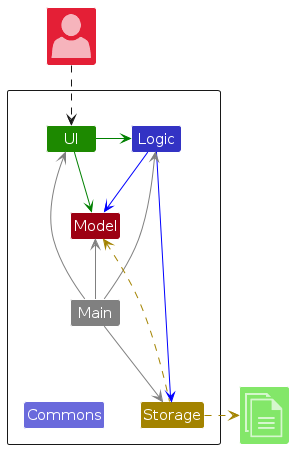
The Architecture Diagram given above explains the high-level design of the App.
Given below is a quick overview of main components and how they interact with each other.
Main components of the architecture
Main (consisting of classes Main and MainApp) is in charge of the app launch and shut down.
- At app launch, it initializes the other components in the correct sequence, and connects them up with each other.
- At shut down, it shuts down the other components and invokes cleanup methods where necessary.
The bulk of the app's work is done by the following four components:
UI: The UI of the App.Logic: The command executor.Model: Holds the data of the App in memory.Storage: Reads data from, and writes data to, the hard disk.
Commons represents a collection of classes used by multiple other components.
How the architecture components interact with each other
The Sequence Diagram below shows how the components interact with each other for the scenario where the user issues the command delete 1.
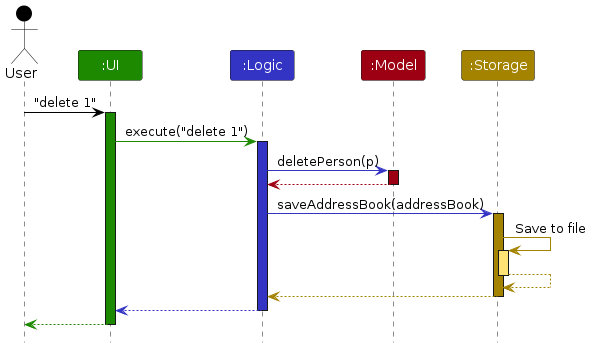
Each of the four main components (also shown in the diagram above),
- defines its API in an
interfacewith the same name as the Component. - implements its functionality using a concrete
{Component Name}Managerclass (which follows the corresponding APIinterfacementioned in the previous point.
For example, the Logic component defines its API in the Logic.java interface and implements its functionality using the LogicManager.java class which follows the Logic interface. Other components interact with a given component through its interface rather than the concrete class (reason: to prevent outside component's being coupled to the implementation of a component), as illustrated in the (partial) class diagram below.
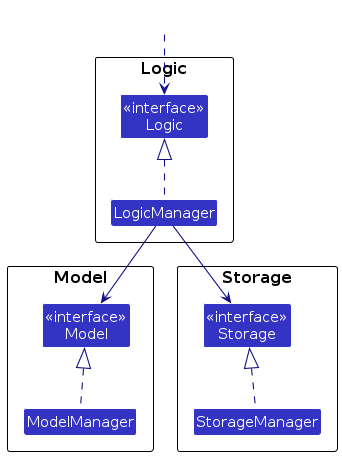
The sections below give more details of each component.
UI component
The API of this component is specified in Ui.java
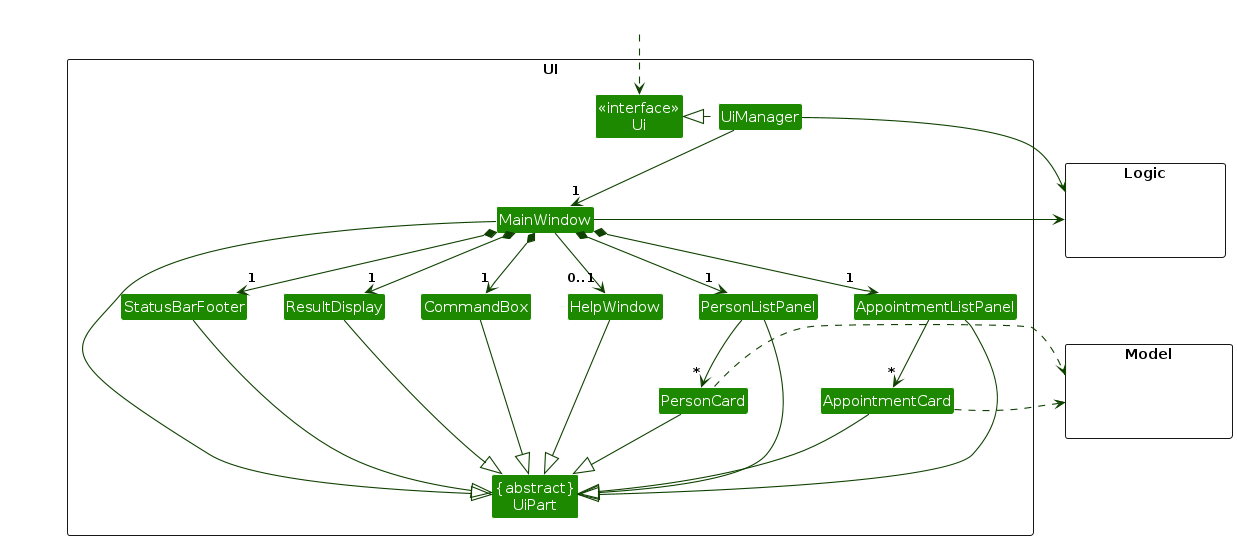
The UI consists of a MainWindow that is made up of parts e.g.CommandBox, ResultDisplay, PersonListPanel, StatusBarFooter etc. All these, including the MainWindow, inherit from the abstract UiPart class which captures the commonalities between classes that represent parts of the visible GUI.
The UI component uses the JavaFx UI framework. The layout of these UI parts are defined in matching .fxml files that are in the src/main/resources/view folder. For example, the layout of the MainWindow is specified in MainWindow.fxml
The UI component,
- executes user commands using the
Logiccomponent. - listens for changes to
Modeldata so that the UI can be updated with the modified data. - keeps a reference to the
Logiccomponent, because theUIrelies on theLogicto execute commands. - depends on some classes in the
Modelcomponent, as it displaysPersonobject residing in theModel.
Logic component
API : Logic.java
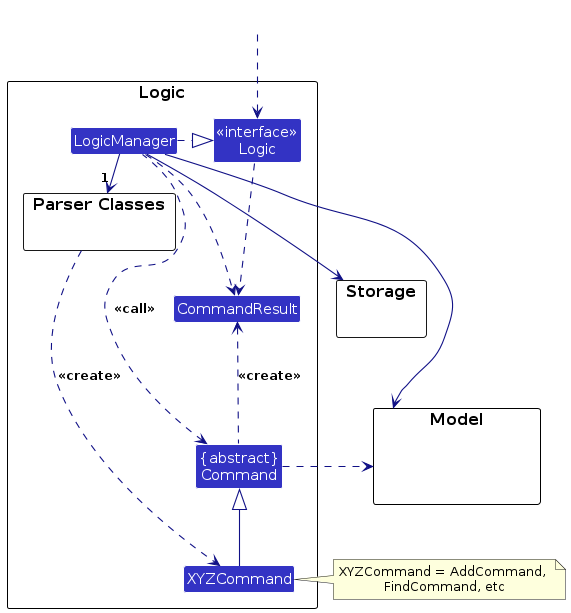
Here's a (partial) class diagram of the Logic component:
The sequence diagram below illustrates the interactions within the Logic component, taking execute("delete 1") API call as an example.
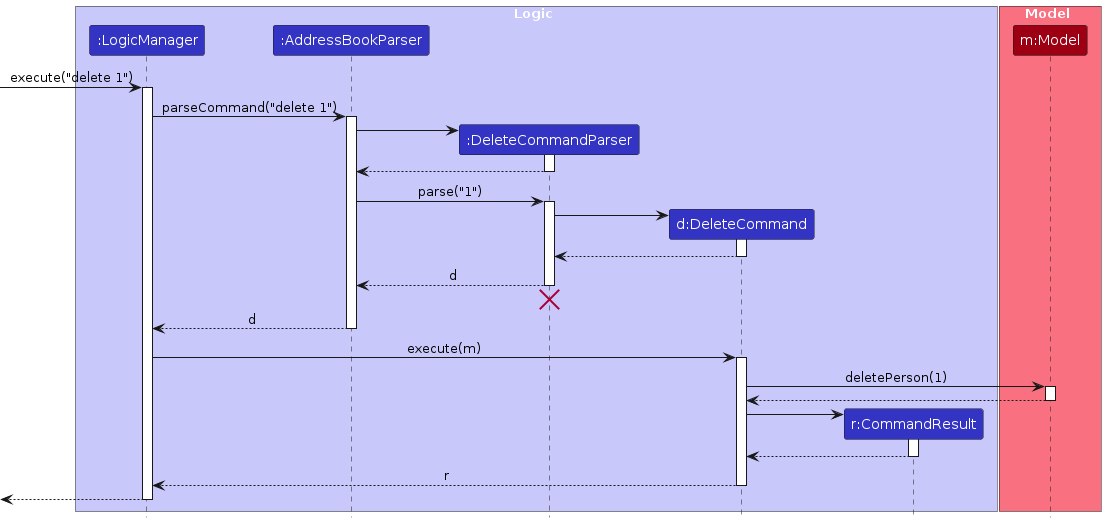
Note: The lifeline for DeleteCommandParser should end at the destroy marker (X) but due to a limitation of PlantUML, the lifeline continues till the end of diagram. The same goes for subsequent sequence diagrams in this guide.
How the Logic component works:
- When
Logicis called upon to execute a command, it is passed to anAddressBookParserobject which in turn creates a parser that matches the command (e.g.,DeleteCommandParser) and uses it to parse the command. - This results in a
Commandobject (more precisely, an object of one of its subclasses e.g.,DeleteCommand) which is executed by theLogicManager. - The command can communicate with the
Modelwhen it is executed (e.g. to delete a person).
Note that although this is shown as a single step in the diagram above (for simplicity), in the code it can take several interactions (between the command object and theModel) to achieve. - The result of the command execution is encapsulated as a
CommandResultobject which is returned back fromLogic.
Here are the other classes in Logic (omitted from the class diagram above) that are used for parsing a user command:
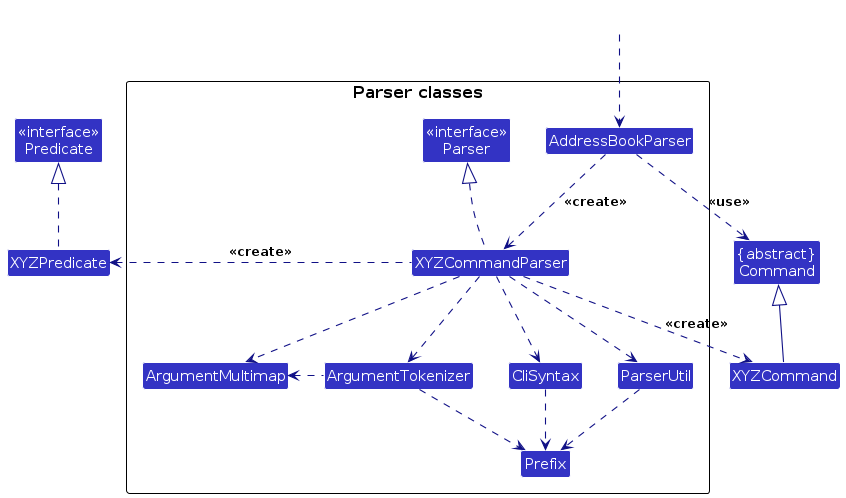
How the parsing works:
- When called upon to parse a user command, the
AddressBookParserclass creates anXYZCommandParser(XYZis a placeholder for the specific command name e.g.,AddCommandParser) which uses the other classes shown above to parse the user command and create aXYZCommandobject (e.g.,AddCommand) which theAddressBookParserreturns back as aCommandobject. - All
XYZCommandParserclasses (e.g.,AddCommandParser,DeleteCommandParser, ...) inherit from theParserinterface so that they can be treated similarly where possible e.g, during testing.
Model component
API : Model.java
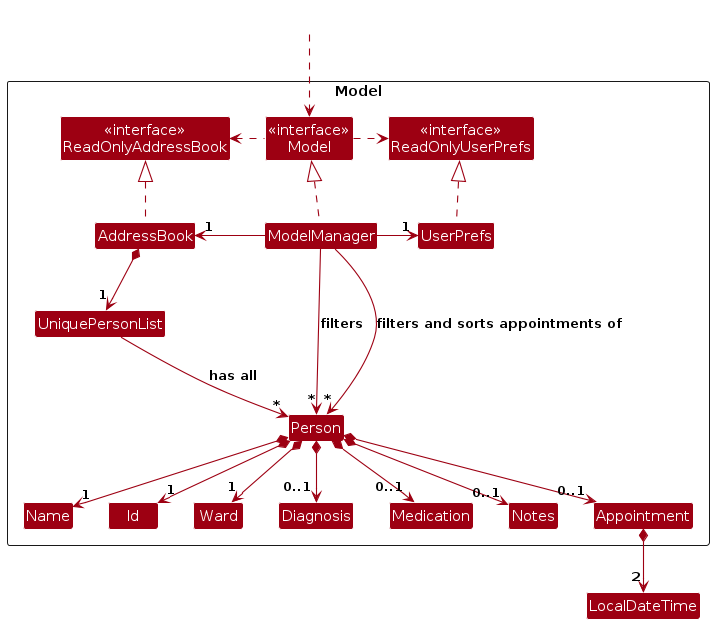
The Model component,
- stores the application data i.e., all
Personobjects (which are contained in aUniquePersonListobject). - stores two instances of currently 'selected'
Personobjects (e.g., results of a search query and a schedule query) as a filtered patient list and a filtered and sorted appointment list which are exposed to outsiders as two separate unmodifiableObservableList<Person>that can be 'observed' e.g. the UI can be bound to this list so that the UI automatically updates when the data in the list change. - stores a
UserPrefobject that represents the user’s preferences. This is exposed to the outside as aReadOnlyUserPrefobjects. - does not depend on any of the other three components (as the
Modelrepresents data entities of the domain, they should make sense on their own without depending on other components)
Storage component
API : Storage.java
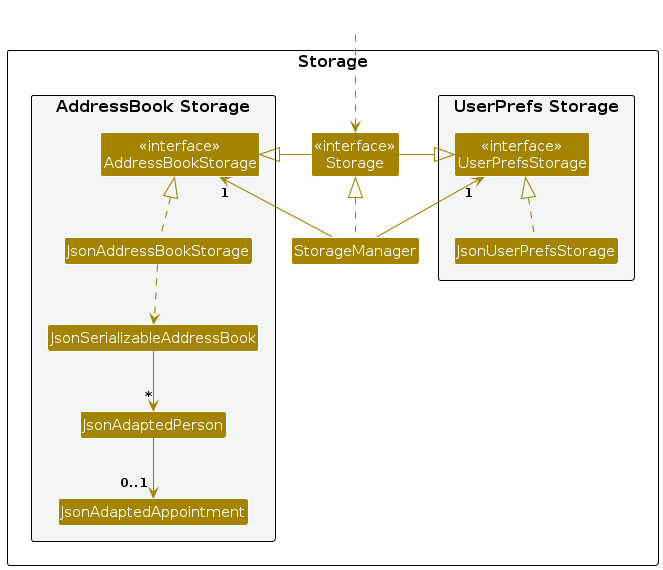
The Storage component,
- can save both application data and user preference data in JSON format, and read them back into corresponding objects.
- inherits from both
AddressBookStorageandUserPrefStorage, which means it can be treated as either one (if only the functionality of only one is needed). - depends on some classes in the
Modelcomponent (because theStoragecomponent's job is to save/retrieve objects that belong to theModel)
Common classes
Classes used by multiple components are in the seedu.address.commons package.
Implementation
This section describes some noteworthy details on how certain features are implemented.
Add Patient Feature
Overview
The add command allows users to add new patients. The command requires:
- Name – Patient's name.
- ID – Patient's unique ID.
- Ward – Patient's Ward.
- Diagnosis (Optional) – Patient's Diagnosis.
- Medication (Optional) - Patient's Medication.
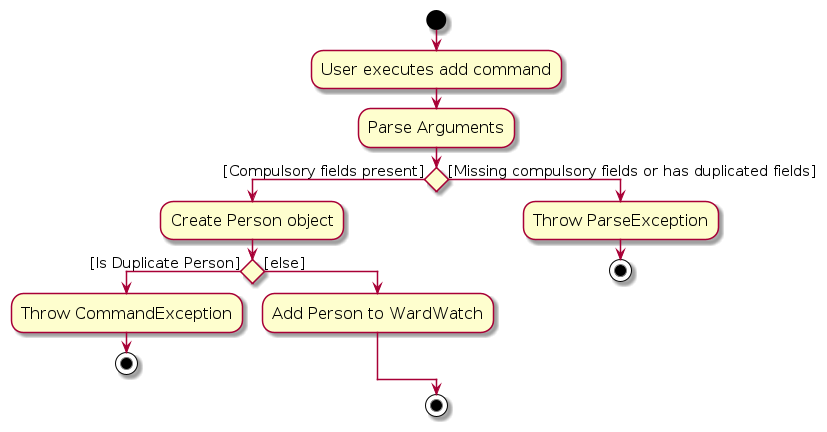
Here is an activity diagram that summarises the key steps taken.
1. Parsing User Input
The AddCommandParser class is responsible for parsing user input. It uses ArgumentTokenizer to tokenize the input string, extracting:
- Name – Patient's name.
- ID – Patient's unique ID.
- Ward – Patient's Ward.
- Diagnosis – Patient's Diagnosis.
- Medication - Patient's Medication.
The parser will check that the compulsory Name, ID, and Ward fields are present, and that there are no duplicate parameters included in the input string. The optional Diagnosis and Medication fields will be parsed as empty strings if they are not included in the input string.
During this parsing process:
- A
Personinstance is created to hold the relevant fields.
2. Executing the Command
The AddCommand class performs the following when adding a patient:
- Update Existing Patient Record:
The newPersoninstance will be added to the existing patient record in theModel.
3. Exceptions and warnings
The AddCommand class enforces validation rules to ensure non-duplicates and potential incorrect input fields.
- Ensuring non-duplicates:
Check that the new person added does not already exist in WardWatch, i.e. does not already exist a person with same
ID. - Warnings:
The command will also check for the presence of special characters in the
WardandIDfields. An appropriate warning will be displayed if they are present.
Add Notes Feature
Overview
The addnotes command allows users to add notes to a specific patient. The command requires:
- Index – Patient's index in the displayed patient list.
- Notes - Patient notes that the user wishes to write for the specified patient.
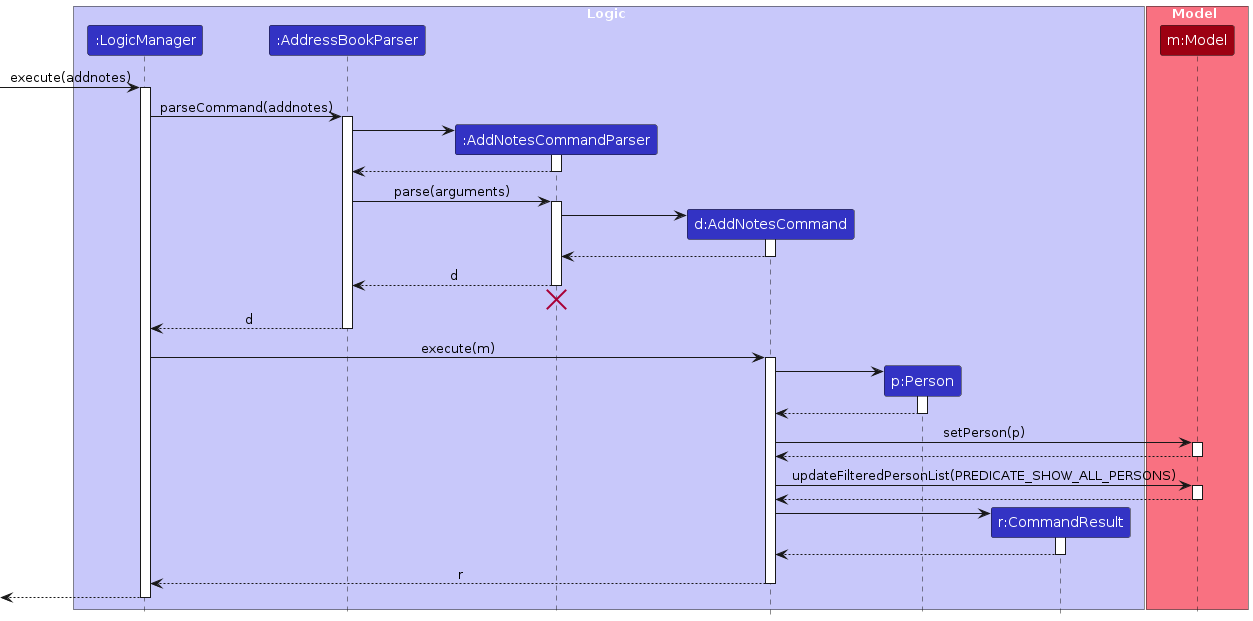
Here is a sequence diagram which showcases the flow of the program as well as the key steps taken.
1. Parsing User Input
The AddNotesCommandParser class is responsible for parsing user input. It uses ArgumentTokenizer to tokenize the input string, extracting:
- Index – Identifies the patient in the displayed patient list.
- Notes - Patient notes that the user wishes to write for the specified patient.
During this parsing process:
- A
Notesinstance is created to hold the note details.
2. Executing the Command
The AddNotesCommand class performs the following steps to add Notes to a patient:
Retrieve Patient Information:
Uses the index from the parser to locate the patient in the latest filtered list of patients.Create New Person Instance with the Notes instance:
- Combines patient information with the new
Notesdetails. - Creates a new updated
Personinstance, with theNotes.
- Combines patient information with the new
Replace Existing Patient Record: The new
Personinstance, with theNotes, replaces the existing patient record in theModel.Updating filtered list: The
Modelwill then update the filtered list of patients to show all patients.
3. Handling Invalid Date Inputs
The AddNotesCommandParser and AddNotesCommand classes enforce validation rules to ensure that valid index and notes are being passed in.
- Valid index verification:
AddNotesCommandParserchecks if the index is an unsigned non-zero integer.AddNotesCommandchecks if the index is greater than the number of patients in the last displayed list.
- Valid notes verification:
AddNotesCommandParserchecks if the user input for notes is empty and throws an error message stating that the user is unable to add empty notes to a patient.
Add Appointment Feature
Overview
The makeappt command allows users to add an appointment tied to a specific patient. The command requires:
- Index – Patient's index in the address book.
- Start Date – Beginning date and time of the appointment.
- End Date – Ending date and time of the appointment.
- Description – Brief description of the appointment.
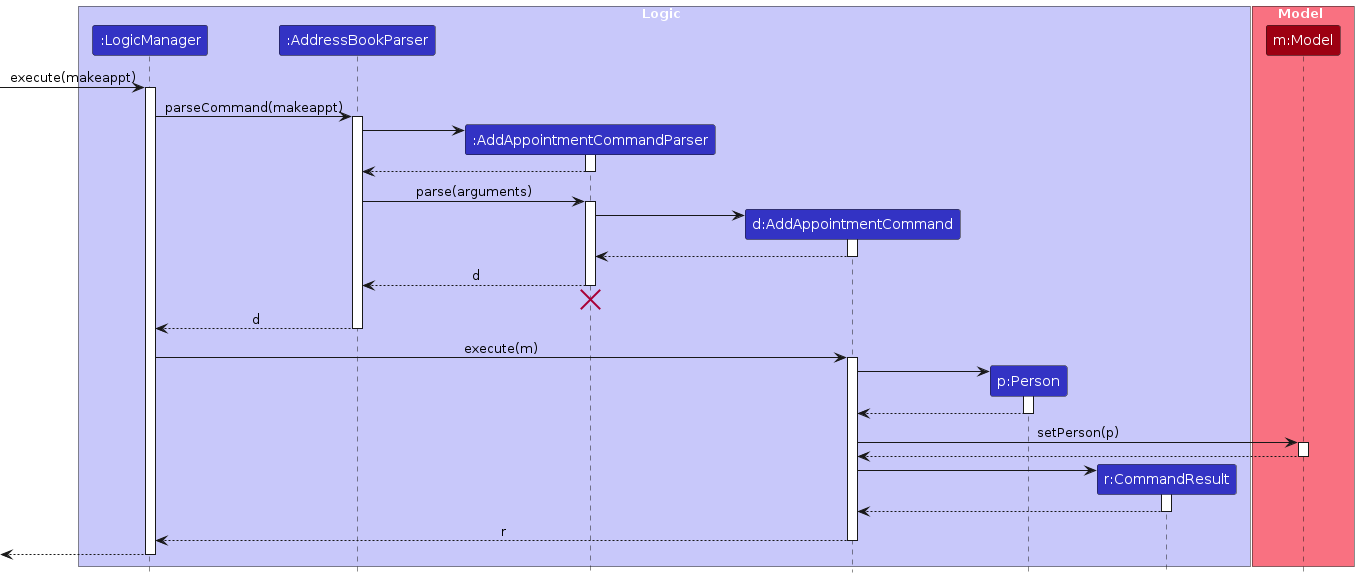
1. Parsing User Input
The AddAppointmentCommandParser class is responsible for parsing user input. It uses ArgumentTokenizer to tokenize the input string, extracting:
- Index – Identifies the patient in the address book.
- Start Date – Beginning of the appointment.
- End Date – End of the appointment.
- Description – Additional details about the appointment.
During this parsing process:
- An
Appointmentinstance is created to hold the appointment details.
2. Executing the Command
The AddAppointmentCommand class performs the following steps to add an appointment:
Retrieve Patient Information:
Uses the index from the parser to locate the patient in the latest filtered list of patients.Create New Person Instance with Appointment:
- Utilises patient information from the current patient (identified by the index) and the new
Appointmentdetails. - Creates an new
Personinstance with patient information andAppointmentinstance.
- Utilises patient information from the current patient (identified by the index) and the new
Replace Existing Patient Record: The new
Personinstance, containing theAppointment, replaces the existing patient record in theModel.
3. Handling Invalid Date Inputs
The AddAppointmentCommandParser and AddAppointmentCommand classes enforce validation rules to ensure correct date formats and scheduling logic:
Format Verification:
AddAppointmentCommandParserchecks if the date and time format followsdd-MM-yyyy-HH-mm.- It also ensures the Start Date is before or equal to the End Date.
- It also checks if date and time is valid.
Conflict Checking:
AddAppointmentCommandchecks if the new appointment overlaps with any existing appointments for the patient.- If there is an overlap, an error message is thrown, preventing the appointment from being created.
- If no overlap exists, the new appointment overrides any previous appointment.
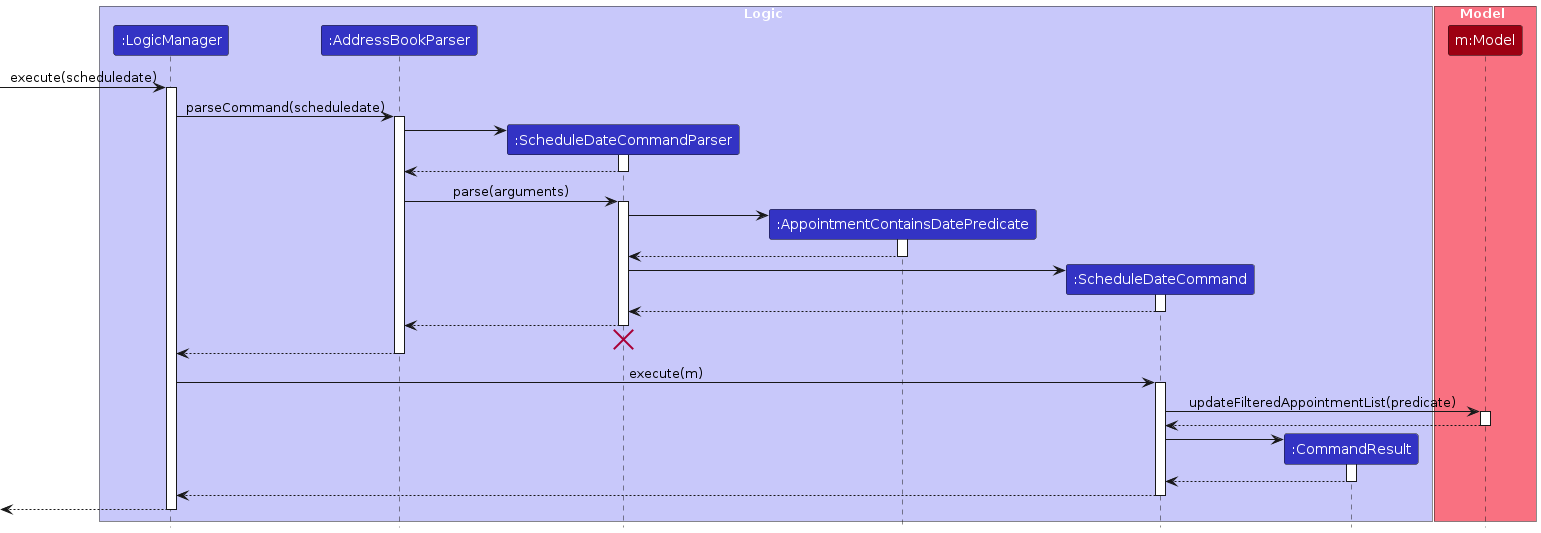
Schedule Date Feature
Overview
The scheduledate command allows users to filter the appointments occurring on a specified date. The command requires:
- Date – Date regarding schedule of interest.
1. Parsing User Input
The ScheduleDateCommandParser class is responsible for parsing user input. It uses ParserUtil extracting:
- Date – Date regarding schedule of interest.
During this parsing process:
- An
AppointmentContainsDatePredicateinstance is created to hold the date predicate details.
2. Executing the Command
The ScheduleDateCommand class performs the following steps to filter the appointments:
Update filteredAppointments:
Uses theAppointmentContainsDatePredicatefrom the parser to updatefilteredAppointmentsinModel.Display sortedAppointments:
sortedAppointmentswill be updated with the updatedfilteredAppointmentsinModel.sortedAppointmentsis displayed.
3. Handling Invalid Date Inputs
The ScheduleDateCommandParser class enforces validation rules to ensure correct date format and scheduling logic:
- Format Verification:
ScheduleDateCommandParserchecks if the date format followsdd-MM-yyyy.- It also checks if the date is valid.
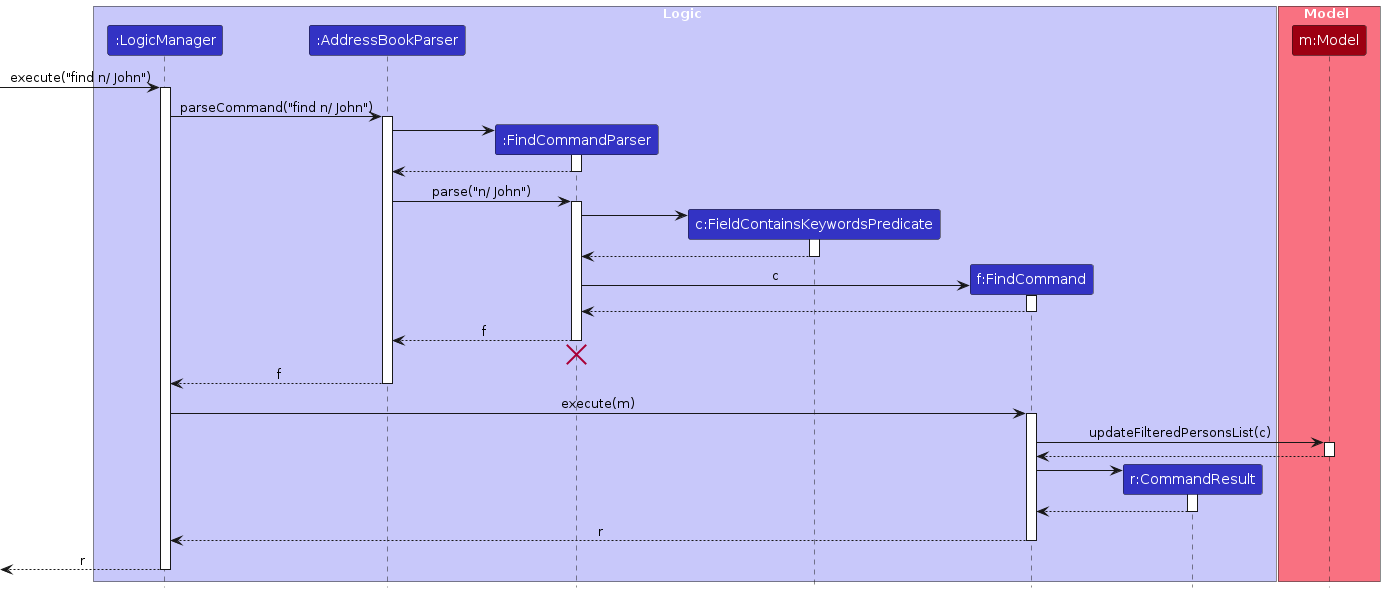
Find Feature
Overview
The find command allows users to search through the entire patient list and filter it based on a given field and certain keywords. The command requires:
- Field - The specific field to perform the search on.
- Keyword(s) - The keyword(s) to search for.
1. Parsing User Input
The FindCommandParser class is responsible for parsing user input. It uses ArgumentTokenizer to tokenize the input string, extracting:
- Prefix - the prefix associated with the field we wish to search through.
- Search String - A String containing the keyword(s) to search for.
During the parsing process:
- The Search String is split by white spaces, creating a list of Keyword(s).
- A
FieldContainsKeywordPredicateinstance is created to hold the field and Keyword(s) details.
2. Executing the Command
The FindCommand class performs the following steps to filter the patient list:
Update
filteredPersons: Uses theFieldContainsKeywordPredicatefrom the parser to updatefilteredPersonsinModel. This will perform a search on the specified field for every patient, returningtrueif any word in the field contains any of the keyword(s) as a substring.Display
filteredPersons: The displayed list of patients will automatically update with the new filteredPersons as it is anObservableList.
3. Handling Invalid Inputs
The FindCommandParser class enforces validation rules to ensure that the input is valid:
- Format Verification:
FindCommandParserchecks if there is one and only one field specified.- It also checks to ensure the search string is not empty.
Planned Enhancements
Last edited functionality
Currently, there is no way to tell when a patient was last edited. This information might be crucial in a healthcare setting where the healthcare professional may need to know how recent the information is.
Planned implementation
We can make it such that a Person object contains a LocalDateTime field called lastEdited that keeps track of when the Person was last updated. This field will be updated whenever a new Person is created, be it from the add command or any of the other commands that edits a Person. The lastEdited field will be displayed in the result display screen.
Make "Index does not exist" error message more specific
Currently, whenever a user enters a command that requires INDEX as a parameter, such as the view or delete command, and enters an index that is either non-positive or greater than Integer.MAX_VALUE of 2147483647, WardWatch will show the general invalid command format message followed by the command usage message.
Planned implementation
We plan to make the current invalid index message more specific and add more error messages in the case where users pass in the following invalid indexes:
- The current invalid index message which is thrown when a valid index that is greater than the largest index in the displayed patient list just states that
The person index provided is invalidand is not specific enough. We plan to change it toThe index provided does not refer to any patient in the displayed list, please check the displayed list again!which will give users a better idea of what went wrong. - In the case where the index passed in is greater than the
Integer.MAX_VALUE, the error messageThe index provided is greater than 2147483647 which is unfortunately not supported in our product, please try again with a smaller index!will be shown. - In the case where the index passed in is non-positive, the error message
INDEX provided must be a positive integer, please try again!will be shown.
Add appointment title and description and viewappt command
Currently, our makeappt command only allows users to create appointments with a short description. This prevents users from adding too much information to the current description which may be restrictive.
Planned implementation
We plan to separate appointment title and description which gives users more flexibility. Appointment title will just be a short description such as Surgery or Medical checkup and support a character limit of 40. Appointment description will be for additional information about the appointment that the user may want to add. The appointment description will support a much longer character limit of 300 but will not be shown in the appointment list panel as the long inputs may cause issues with the UI.
As such we will also implement a viewappt command that allows users to view all information about the appointment including the new appointment description.
Add command shortcut for longer commands
Currently, some of the commands in WardWatch such as scheduleall and scheduledate are very long and may be hard to type for users.
Planned implementation
We plan to add command shortcuts for longer commands such as sAll and sDate for the commands scheduleall and scheduledate respectively. These command shortcuts will work alongside the original commands, meaning that whether the user types in sAll or scheduleall, WardWatch will recognise both as the scheduleall command.
This is so that seasoned and more advanced users have the option to optimise their workflow by utilising the command shortcuts while newer users still have the option of using the more intuitive sounding commands which reduces the learning curve.
Fix addnotes command showing all patients
Currently, the successful execution of an addnotes command will subsequently reset the last filtered list of patients to show all patients again. Resetting the displayed list may make it difficult for the user to confirm his/her changes.
Planned implementation
We plan to change the implementation of addnotes command such that the patient list will remain filtered after the successful addition of notes.
Make duplicate ID checking case-insensitive
Currently, the checking for duplicate patient ID when creating a new patient is case-sensitive, meaning that patients with similar IDs except for the casing of letters will be considered different. For example, the IDs P12345 and p12345 will be considered different. This may increase user errors when they are searching for a specific patient.
Planned implementation
We plan to make the duplicate ID cross-checking case-insensitive such that similar IDs that differ only by casing will be considered as duplicate. This will help to reduce the room for human error when using our product.
Documentation, logging, testing, configuration, dev-ops
Appendix: Requirements
Product Scope
Target user profile:
- healthcare professionals
- has a need to manage a significant number of patients
- prefer desktop apps over other types
- can type fast
- prefers typing to mouse interactions
- is reasonably comfortable using CLI apps
Value proposition:
- manage patients faster than a typical mouse/GUI driven app
- reduce time spent on administrative tasks by centralizing information, allowing user to focus more on patient care
User Stories
Priorities: High (must have) - * * *, Medium (nice to have) - * *, Low (unlikely to have) - *
| Priority | As a … | I want to … | So that I can… |
|---|---|---|---|
* * * | new user | see usage instructions | refer to instructions when I forget how to use the App |
* * * | doctor | add a new patient | |
* * * | doctor | delete a patient | remove entries that I no longer need |
* * * | doctor | search for patients by name or ID | quickly find and review specific patient information |
* * | doctor | hide private contact details | minimize chance of someone else seeing them by accident |
* | tech-savvy doctor | have advanced search and filter options to quickly find and organize patient information | easily manage large volumes of data |
* * * | nurse | view a patient's medication and treatment schedule, ward location and diagnosis all in one place | ensure medications are administered on time and in the correct dosage |
* * | nurse | access a list of patients I am responsible for during my shift | manage my time efficiently and ensure that all patients receive timely care |
* * * | As a detail-oriented doctor | add notes to patients | manage information about the patient |
* * * | doctor | edit my patients' information | update their conditions as they change |
* * * | forgetful doctor | receive daily reminders on the current day's appointment | avoid overlooking any important tasks or visit schedules |
* * * | doctor | make appointments for my patients | keep track of my schedule |
* * * | doctor | delete my patient's appointments | keep my schedule updated |
Use Cases
(For all use cases below, the System is the WardWatch and the Actor is the doctor, unless specified otherwise)
Use case: UC01 - Add a patient
MSS
Doctor submits new patient information.
WardWatch displays a success message containing information of new patient.
Use case ends.
Extensions
1a. The information entered is invalid.
1a1. WardWatch shows an invalid patient information error message.
Use case resumes at step 1.
1b. The format of the input is invalid.
1b1. WardWatch shows an invalid format error message.
Use case resumes at step 1.
Use case: UC02 - Delete a patient
Preconditions: WardWatch is displaying a non-empty list of patients.
MSS
Doctor requests to delete a specific patient from the displayed list.
WardWatch deletes the patient.
Use case ends.
Extensions
1a. Doctor request to delete invalid patient.
1a1. WardWatch shows an invalid patient message.
Use case resumes at step 1.
Use case: UC03 - Update a patient
Preconditions: WardWatch is displaying a non-empty list of patients.
MSS
Doctor submits new patient information of specific patient.
WardWatch displays information of updated patient.
Use case ends.
Extensions
1a. The information entered is invalid.
1a1. WardWatch shows an invalid patient information error message.
Use case resumes at step 1.
1b. The format of the input is invalid.
1b1. WardWatch shows an invalid format error message.
Use case resumes at step 1.
Use case: UC04 - Search a patient
MSS
Doctor searches for patients.
WardWatch shows a list of patients matching the search.
Use case ends.
Extensions
2a. Doctor tries to do an invalid search.
2a1. WardWatch shows an invalid search error message.
Use case resumes at step 1.
2b. There is no patient that matches the search.
2b1. WardWatch shows that there are no matching patients.
Use case ends.
2c. The format of the input is invalid.
2c1. WardWatch shows an invalid format error message.
Use case resumes at step 1.
Use case: UC05 - View patient
Preconditions: WardWatch is displaying a non-empty list of patients.
MSS
Doctor request to view a specific patient from the list.
WardWatch displays information about the specific patient.
Use case ends.
Extensions
1a. Doctor request to view invalid patient.
1a1. WardWatch shows an invalid patient message.
Use case resumes at step 1.
Use case: UC06 - List patients
MSS
Doctor request to list all patients.
WardWatch shows a list of all patients.
Use case ends.
Extensions
2a. The list is empty.
2a1. WardWatch shows that list is empty.
Use case ends.
Use case: UC07 - Add Appointment
MSS
Doctor submits new Appointment information for a patient.
WardWatch displays success message with the updated patient information.
Use case ends.
Extensions
1a. The information entered is invalid.
1a1. WardWatch shows an invalid Appointment information error message.
Use case resumes at step 1.
1b. The format of the input is invalid.
1b1. WardWatch shows an invalid format error message.
Use case resumes at step 1.
Use case: UC08 - Delete Appointment
Preconditions: WardWatch is displaying a non-empty list of patients.
MSS
Doctor request to delete an Appointment tied to a patient.
WardWatch deletes specified appointment.
WardWatch shows a success message.
Use case ends.
Extensions
1a. The delete appointment command format entered is invalid.
1a1. WardWatch shows an incorrect format error message.
Use case resumes at step 1.
1b. Doctor requests to delete an Appointment from an invalid patient.
1b1. WardWatch shows an invalid patient message.
Use case resumes at step 1.
1c. Doctor requests to delete a non-existing Appointment from a patient.
1c1. WardWatch shows patient does not have Appointment error message.
Use case resumes at step 1.
Use case: UC09 - Change Appointment
MSS
Doctor deletes existing Appointment(UC08).
Doctor adds new Appointment with updated details(UC07).
Use case ends.
Use case: UC10 - See Schedule for a certain day
MSS
Doctor request to see schedule for a certain day.
WardWatch shows a success message and displays all appointments for that day.
Use case ends.
Extensions
1a. The date format is invalid.
1a1. WardWatch shows an invalid date error message.
Use case resumes at step 1.
Use case: UC11 - See all Schedules
MSS
Doctor request to see schedule for all days.
WardWatch displays all appointments for all days.
Use case ends.
Extensions
1a. The schedule all command format is invalid.
1a1. WardWatch shows an error message.
Use case resumes at step 1.
Use case: UC12 - Add Notes tied to a specific patient
Preconditions: WardWatch is displaying a non-empty list of patients.
MSS
Doctor submits new Notes for a certain patient.
WardWatch displays a success message with the Patient information and the new Notes.
Use case ends.
Extensions
1a. The information entered is invalid.
1a1. WardWatch shows an invalid Patient Notes information error message.
Use case resumes at step 1.
1b. The format of the input is invalid.
1b1. WardWatch shows an invalid format error message.
Use case resumes at step 1.
Use case: UC13 - delete Notes tied to a specific patient
MSS
Doctor request to delete Notes from a specific Patient.
WardWatch deletes the Patient Notes.
Use case ends.
Extensions
1a. The delete Notes command format entered is invalid.
1a1. WardWatch shows an incorrect format error message.
Use case resumes at step 1.
1b. Doctor requests to delete Notes from an invalid patient.
- 1b1. WardWatch shows an invalid patient message.
1c. Doctor requests to delete non-existing Notes from a patient.
1c1. WardWatch shows Patient does not have Appointment error message.
Use case resumes at step 1.
Non-Functional Requirements
- Should work on any mainstream OS as long as it has Java
17or above installed. - Should be able to hold up to 1000 persons without a noticeable sluggishness in performance for typical usage.
- A user with above average typing speed for regular English text (i.e. not code, not system admin commands) should be able to accomplish most of the tasks faster using commands than using the mouse.
- The system should respond to user actions within 1 second under normal load.
- Will not have a server or cloud storage system. All data will be stored in local storage.
- The system should handle errors gracefully, providing meaningful messages to users without crashing.
- The system should be able to work offline, in the absence of internet connection.
Glossary
- Mainstream OS: Windows, Linux, Unix, MacOS
- Patient: A person that has been designated to be under the care of the user (i.e. a doctor or nurse).
- Local Storage: A text file, with read and write properties, located relative to the application file.
Appendix: Instructions for manual testing
Given below are instructions to test the app manually.
Note: These instructions only provide a starting point for testers to work on; testers are expected to do more exploratory testing.
Launch and shutdown
Initial launch
Download the
.jarfile and copy into an empty foldercdinto the folder and runjava -jar wardwatch.jar
Expected: Shows the GUI with a set of sample contacts.
Saving window preferences
Resize the window to an optimum size. Move the window to a different location. Close the window.
Re-launch the app by running the command above.
Expected: The most recent window size and location is retained.
Adding a patient
Command: add
- Adding a patient with all fields
- Prerequisites:
- No patients in the list
- No patients in the list
- Test Case:
add n/John Doe i/P00001 w/A1 d/Type 1 Diabetes m/Metformin - Expected A patient with the following fields is added to the list:
- Name:
John Doe - ID:
P00001 - Ward:
A1 - Diagnosis:
Type 1 Diabetes - Medication:
Metformin - Notes:
- - Appointment:
-
- Name:
- Prerequisites:
- Adding a patient without some optional fields (DIAGNOSIS or MEDICATION)
- Prerequisites:
- No patients in the list
- No patients in the list
- Test Case:
add n/Kathy Prince i/P00002 w/D1 d/Gastritis - Expected A patient with the following fields is added to the list:
- Name:
Kathy Prince - ID:
P00002 - Ward:
D1 - Diagnosis:
Gastritis - Medication:
- - Notes:
- - Appointment:
-
- Name:
- Test Case:
add n/Joshua Lim i/P00003 w/C3 m/Paracetemol - Expected A patient with the following fields is added to the list:
- Name:
Joshua Lim - ID:
P00003 - Ward:
C3 - Diagnosis:
- - Medication:
Paracetemol - Notes:
- - Appointment:
-
- Name:
- Prerequisites:
- Adding a patient without optional fields (DIAGNOSIS and MEDICATION)
- Prerequisites:
- No patients in the list
- No patients in the list
- Test Case:
add n/Emily Tan i/P00004 w/B2 - Expected: A patient with the following fields is added to the list:
- Name:
Emily Tan - ID:
P00004 - Ward:
B2 - Diagnosis:
- - Medication:
- - Notes:
- - Appointment:
-
- Name:
- Prerequisites:
Editing a patient
Command: edit
- Editing a patient with all fields
- Prerequisites:
- Non-empty patient list is displayed
- First patient in the list does have fields that match the edited fields
- Test Case:
edit 1 n/Jeff Bean i/P10000 w/G5 d/influenza m/paracetomol - Expected: The first patient in the list is updated with the following fields:
- Name:
Jeff Bean - ID:
P10000 - Ward:
G5 - Diagnosis:
influenza - Medication:
paracetomol - Notes: remains unchanged
- Appointment: remains unchanged
- Name:
- Prerequisites:
- Editing a patient with a few fields
- Prerequisites:
- Non-empty patient list is displayed
- First patient in the list does have fields that match the edited fields
- Test Case 1:
edit 1 n/Samuel Lee - Expected: The first patient in the list is updated with the following fields:
- Name:
Samuel Lee - ID: remains unchanged
- Ward: remains unchanged
- Diagnosis: remains unchanged
- Medication: remains unchanged
- Notes: remains unchanged
- Appointment: remains unchanged
- Name:
- Test Case 2:
edit 1 i/P20001 w/C1 - Expected: The first patient in the list is updated with the following fields:
- Name: remains unchanged
- ID:
P20001 - Ward:
C1 - Diagnosis: remains unchanged
- Medication: remains unchanged
- Notes: remains unchanged
- Appointment: remains unchanged
- Test Case 3:
edit 1 d/Bronchitis m/Amoxicillin w/D2 - Expected: The first patient in the list is updated with the following fields:
- Name: remains unchanged
- ID: remains unchanged
- Ward:
D2 - Diagnosis:
Bronchitis - Medication:
Amoxicillin - Notes: remains unchanged
- Appointment: remains unchanged
- Prerequisites:
Deleting a patient
Command: delete
- Deleting a patient while all patients are being shown
- Prerequisites:
- Non-empty patient list is displayed
- Non-empty patient list is displayed
- Test Case 1:
delete 1 - Expected: First patient is deleted from the list. Details of the deleted contact shown in the status message.
- Test Case 2:
delete 0 - Expected: No patient is deleted. Error details shown in the status message.
- Test Case 3: Other incorrect delete commands to try:
delete,delete x(where x is larger than the list size) - Expected: No patient is deleted. Error details shown in the status message.
- Prerequisites:
Searching for a patient
Command: find
- Finding patients by their information.
- Prerequisites:
- Non-empty patient list is displayed
- Non-empty patient list is displayed
- Test Case 1:
find n/Emily Tan - Expected: Displays all patients with Name that contains
EmilyorTanas a substring. - Test Case 2:
find i/P00001 - Expected: Displays all patients with ID that contains
P00001as a substring. - Test Case 3:
find w/A1 - Expected: Displays all patients with Ward that contains
A1as a substring. - Test Case 4:
find d/Diabetes - Expected: Displays all patients with Diagnosis that contains
Diabetesas a substring. - Test Case 5:
find m/Metformin - Expected: Displays all patients with Medication that contains
Metforminas a substring.
- Prerequisites:
Viewing a patient
Command: view
- Viewing a patient's information.
- Prerequisites:
- Non-empty patient list is displayed
- Non-empty patient list is displayed
- Test Case 1:
view 1 - Expected: Displays the first patients information in the command result box.
- Prerequisites:
Adding notes to a patient
Command: addnotes
- Adding notes to a patient
- Prerequisites:
- Non-empty patient list is displayed
- Non-empty patient list is displayed
- Test Case:
addnotes 1 pn/patient prone to falling - Expected: The first patient in the list is updated with the following fields:
- Name: remains unchanged
- ID: remains unchanged
- Ward: remains unchanged
- Diagnosis: remains unchanged
- Medication: remains unchanged
- Notes:
patient prone to falling - Appointment: remains unchanged
- Prerequisites:
- Adding empty patient notes
- Prerequisites:
- Non-empty patient list is displayed
- Non-empty patient list is displayed
- Test Case:
addnotes 1 pn/ - Expected: WardWatch throws an error informing the user that they are unable to add an empty note to a patient.
- Prerequisites:
Deleting notes from a patient
Command: delnotes
- Deleting notes from a patient that has notes
- Prerequisites:
- Non-empty patient list is displayed
- First patient in the list must have notes
- Test Case:
delnotes 1 - Expected: The first patient in the list is updated with the following fields:
- Name: remains unchanged
- ID: remains unchanged
- Ward: remains unchanged
- Diagnosis: remains unchanged
- Medication: remains unchanged
- Notes:
- - Appointment: remains unchanged
- Prerequisites:
- Deleting notes from a patient who does not have notes
- Prerequisites:
- Non-empty patient list is displayed
- First patient in the list must not have any notes
- Test Case:
delnotes 1 - Expected: WardWatch throws an error informing the user that the patient does not have any notes to delete.
- Prerequisites:
Making an appointment
Command: makeappt
- Adding an appointment to a patient
- Prerequisites:
- Non-empty patient list is displayed
- The appointment the user adds must not overlap with any existing appointment
- Test Case:
makeappt 1 a/ Surgery s/ 01-01-2024-20-00 e/ 01-01-2024-23-00 - Expected: The first patient in the list is updated with the following fields:
- Name: remains unchanged
- ID: remains unchanged
- Ward: remains unchanged
- Diagnosis: remains unchanged
- Medication: remains unchanged
- Notes: remains unchanged
- Appointment:
Surgery FROM 01 January 2024, 08:00 pm TO 01 January 2024, 11:00 pm
- Prerequisites:
- Adding an appointment that overlaps with other appointments
- Prerequisites:
- Non-empty patient list is displayed
- The appointment the user adds must overlap with an existing appointment
- Test Case:
makeappt 1 a/ Checkup s/ 02-01-2024-20-00 e/ 02-01-2024-23-00 - Expected: WardWatch throws the error message
Appointment overlaps with another pre-existing appointment! Please check your schedule and try again
- Prerequisites:
Deleting an appointment
Command: delappt
- Deleting an appointment from a patient who has an appointment
- Prerequisites:
- Non-empty patient list is displayed
- First patient has an appointment
- Test Case:
delappt 1 - Expected: The first patient in the list is updated with the following fields:
- Name: remains unchanged
- ID: remains unchanged
- Ward: remains unchanged
- Diagnosis: remains unchanged
- Medication: remains unchanged
- Notes: remains unchanged
- Appointment:
-
- Prerequisites:
- Deleting an appointment from a patient who has no appointment
- Prerequisites:
- Non-empty patient list is displayed
- First patient in the list has no appointment
- Test Case:
delappt 1 - Expected: WardWatch throws the error message
The Patient indicated does not have an appointment
- Prerequisites:
Showing appointments on a particular date
Command: scheduledate
- Show schedule on a particular date which has appointments
- Prerequisites:
- Non-empty patient list is displayed
- At least one patient has an appointment
- The date that you pass into the command as input has at least one appointment
- Test Case:
scheduledate 01-01-2024 - Expected: WardWatch will give a message stating the number of appointments listed on that date and the appointment list will show all of those appointments.
- Prerequisites:
- Show schedule on a particular date which has no appointments
- Prerequisites:
- Non-empty patient list is displayed
- The date that you pass into the command as input has 0 appointments
- Test Case:
scheduledate 02-01-2024 - Expected: WardWatch shows the message
0 appointment(s) on 02 January 2024 listedand the appointments list shows no appointments.
- Prerequisites:
Showing all appointments
Command: scheduleall
- Show all appointments
- Prerequisites:
- Non-empty patient list is displayed
- At least one patient has an appointment
- Test Case:
scheduleall - Expected: WardWatch shows the message
Displayed all appointmentsand the appointment list will show all appointments.
- Prerequisites:
Appendix: Efforts
This section presents an overview of the work invested by our team in developing WardWatch. We will discuss the complexity and scope, obstacles encountered, and effort required to bring this project to completion.
Complexity and Scope
WardWatch expands on the Person entity originally found in AB3 by adding new entities, such as Appointment and Medication, to meet healthcare-specific demands. These additions introduced new requirements for feature interactions, data management, and storage, which proved more intricate than initially expected.
Beyond adapting AB3’s original features to better fit our target users, WardWatch introduces numerous commands to enhance the application’s usability, particularly for managing patient information and healthcare operations. Integrating these features smoothly with existing functionality demanded considerable attention to detail.
While each of us contributed fewer lines of code than in individual assignments, the group project required substantial coordination and teamwork. This collaboration was essential to ensure cohesive integration and functionality across all new features.
Effort Invested
Improvements to Existing Features
New Patient Data Fields
To meet the requirements of a healthcare management application, additional fields—such as diagnosis, medications, notes, and appointments were incorporated to provide a more comprehensive patient profile.
Enhanced Search Capabilities
Our team upgraded the find command from AB3 to offer greater flexibility, allowing searches by not only name but also fields like diagnosis and medications. The enhanced find feature also enables filtering by specific criteria, which involved a full redesign of the search logic and thorough testing.
User Interface (UI) Enhancements
We revamped the interface to align with WardWatch’s new features and a healthcare-oriented theme. Additionally, the UI logic was refined to enable future developers to make changes with ease.
Newly Added Features
Appointment Tracking
The appointment tracking features represent one of the most significant additions, necessitating major changes to existing structures and multiple new commands to manage appointment schedules. This feature was the most complex and required a substantial effort to coordinate data interactions across various entities. We also had to factor in creating the class AppointmentContainsDatePredicate that implements Predicate
Appointments Scheduling
Appointments scheduling was another big change we made for our application. It required a thorough understanding of storage management and the Java libraries such as LocalDateTime and ObservableList, etc.
Notes
Our team introduced Notes management commands, such as addnotes and delnotes, which involved creating new classes to support the Notes field and commands. We also took additional steps to ensure compatibility with existing command functionality.
Challenges Encountered
Understanding the AB3 Codebase
One major hurdle was grasping the existing AB3 codebase, including the structure, class dependencies, and functionality. This required us to carefully analyze how existing features would interact with our additions, which took considerable time and planning.
Data Interaction Between New and Existing Entities
Linking new entities like Appointment with the Person entity required a thoughtful approach. We needed to create a clear data structure to maintain relationships without introducing dependencies that could hinder usability.
UI Space Constraints
Designing a user-friendly interface within limited screen space was a significant challenge. We needed to balance providing sufficient information with maintaining a streamlined layout. After several iterations, we finalized a design that offers essential data without cluttering the interface.
Implementation of new fields
The addition of new fields such as diagnosis and medication functionalities were more intricate than anticipated. These features required careful planning to account for various scenarios, recognising the balance between restricting the user input to overstricting. Regular discussions helped to streamline our ideas tasks and address any arising issues efficiently.
Implementation of Appointments
In particular, we faced difficulties when attempting to implement the schedule as an ObservableList<Person> as it not only had to be filtered, but also had to be sorted. Having to understand the API of ObservableList provided by JavaFX was challenging. We also had to factor in creating the class AppointmentContainsDatePredicate that implements Predicate<Person> such that the list can actually be filtered, which brought about additional complexity.
Data Management Strategy
Deciding on a data management structure for appointments and medications presented additional challenges. We carefully considered how to balance the storage of patient data within main entities or across relevant contexts.
Debugging and Testing
Testing and debugging were crucial for ensuring a stable and smooth experience for users. While unit testing was straightforward, identifying edge cases was challenging. Rigorous testing was essential to guarantee proper error handling and avoid application crashes due to unexpected inputs.
Achievements
In conclusion, our team manged to design and implement features, addressed bugs, and managed potential integration issues. Although we faced initial difficulties with complex features like appointment and management, collaboration enabled us to overcome these obstacles, ultimately achieving our goals for WardWatch.