
WardWatch User Guide
WardWatch (WW) is a desktop app targeted towards doctors and nurses for managing patients information in hospitals, optimized for use via a Command Line Interface (CLI) while still having the benefits of a Graphical User Interface (GUI). If you can type fast, WW can get your patient management tasks done faster than traditional GUI apps.
Table of Contents
- Quick Start
- General Guidelines
- Input Parameters
- Features
- General Commands
- Patient Management
- Notes Management
- Appointment Management
- FAQ
- Glossary
- Known Issues
- Command Summary
Quick start
- Ensure you have Java
17or above installed in your Computer. Refer to this guide to find out how. - Download the latest
.jarfile from here. - Copy the file to the folder you want to use as the home folder for the WardWatch application.
- Open a command terminal, navigate into the folder you put the jar file in, and use the
java -jar wardwatch.jarcommand to run the application. If you are unsure on how to navigate the terminal, refer to this guide here.
A GUI similar to the image below should appear in a few seconds. Note how the app contains some sample data.
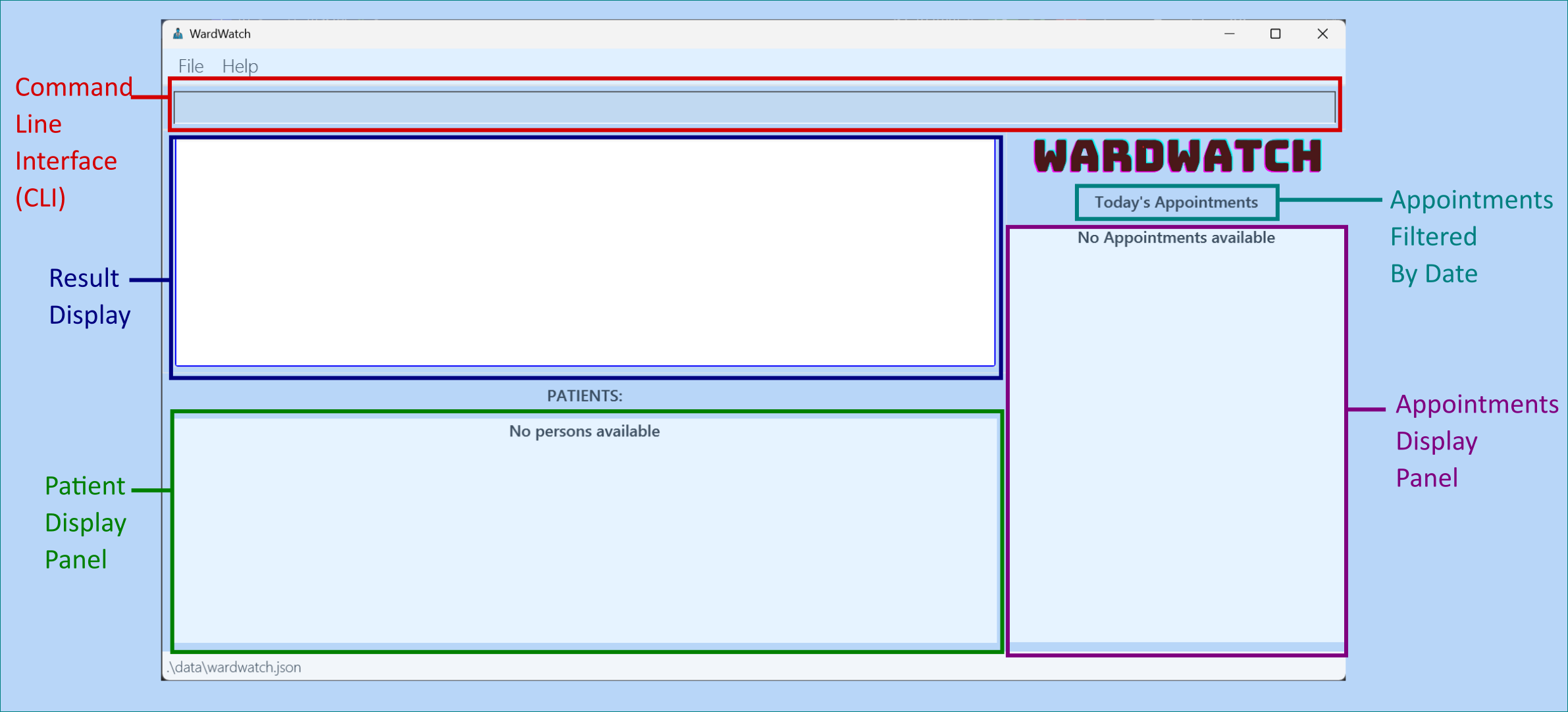
Type the command in the command box located at the top of the window and press Enter to execute it. e.g. typing
helpand pressing Enter will open the help window.
Some example commands you can try:list: Lists all patients.add i/P23456 n/Donald Duck w/B5 d/Diabetes m/Insulin: Adds a contact namedDonald Duckto the patient list.delete 3: Deletes the 3rd patient shown in the current list.find w/ B1: Finds all patients with ward B1.clear: Deletes all patients.exit: Exits the app.
Refer to the Features below for details of each command.
General Guidelines
As a CLI-based application, users will interact with WardWatch by typing commands.
Commands typically begin with a COMMAND_WORD, followed by its relevant PARAMETERS as necessary.
Notes about the command format:
There are 5 CLI command formats as shown below:
COMMAND_WORDCOMMAND_WORD INDEXCOMMAND_WORD PARAMETERCOMMAND_WORD PARAMETERSCOMMAND_WORD INDEX PARAMETERS
For more information on the format of PARAMETERS, please refer to Input parameters.
Other things to note in this User Guide:
- Items in square brackets are optional:
n/NAME [d/DIAGNOSIS]can be used asn/John Doe d/diabetesor asn/John Doe.
- Parameters can be in any order:
n/NAME w/WARDis equivalent tow/WARD n/NAME.
- Items with … after them can be used multiple times including zero times.
[MORE_KEYWORDS]…can be used as(i.e. 0 times),Bo,Hans,Bo Hans Joe,Bo Han Joe Lee, etc.
- Extra parameters for commands without parameters (such as
help,list,exitandclear) will be ignored:
help 123is interpreted ashelp.
- Command word is not case-sensitive:
listandLISTare both valid commands.
- If you are using a PDF version of this document, be careful when copying and pasting commands that span multiple lines as space characters surrounding line-breaks may be omitted when copied over to the application.
Save and Storage information:
WardWatch data are saved in the hard disk automatically after any command that changes the data. There is no need to save manually.
WardWatch data are saved automatically as a JSON file
[JAR file location]/data/wardwatch.json. Advanced users are welcome to update data directly by editing that data file.
Caution:
If your changes to the data file makes its format invalid, WardWatch will discard all data and start with an empty data file at the next run. Hence, it is recommended to take a backup of the file before editing it.
Furthermore, certain edits can cause WardWatch to behave in unexpected ways (e.g., if a value entered is outside the acceptable range). Therefore, edit the data file only if you are confident that you can update it correctly.
Input parameters
Notes about parameters:
Parameters often take up the form of p/[PARAMETER] where p is the parameter symbol. For example: add n/John Doe
n/-> parameter symbolJohn Doe-> parameter.
Patient Parameters
| Symbol | Parameter | Constraints |
|---|---|---|
n | NAME | - Must contain at least 1 alphabetic character and has a character limit of 50. - Allows alphabetic characters, spaces, rounded brackets, hyphen, forward-slashes, @, and commas. |
i | ID | - Must contain at least 1 alphanumeric character and has a character limit of 36. - Allows alphanumeric characters, hyphens, forward-slashes, hashes, rounded brackets. - Unique: Cannot have duplicates (case sensitive) e.g. P123 and p123 are 2 unique IDs. |
w | WARD | - Must contain at least 1 alphanumeric character and has a character limit of 50. |
d | DIAGNOSIS | - Must contain at least 1 alphabetic character and has a character limit of 80. |
m | MEDICATION | - Must contain at least 1 alphanumeric character and has a character limit of 80. - Allows alphanumeric characters, spaces, commas, hyphen, forward-slashes, rounded brackets, periods. |
Notes Parameters
| Symbol | Parameter | Constraints |
|---|---|---|
pn | NOTES | - Must contain at least 1 alphanumeric character and has a character limit of 80. |
Appointment Parameters
| Symbol | Parameter | Constraints |
|---|---|---|
a | DESCRIPTION | - Must contain at least 1 alphabetic character and has a character limit of 80. |
s | START | - A singularDATE-TIME in the form dd-MM-yyyy-HH-mm, where dd is the day, MM is the month, yyyy is the year, HH is the hour and mm is the minute. |
e | END | - A singularDATE-TIME in the form dd-MM-yyyy-HH-mm, where dd is the day, MM is the month, yyyy is the year, HH is the hour and mm is the minute. |
Notes on START and END Date Parameters:
Dates entered on an invalid day (e.g. February 31) are automatically adjusted to the nearest valid day in the specified month.
However, dates exceeding the maximum possible (e.g. the 32nd of any month) will result in an error.
Examples:
makeappt 1 a/Surgery s/31-02-2024-10-00 e/31-02-2024-11-00is adjusted tomakeappt 1 a/Surgery s/29-02-2024-10-00 e/29-02-2024-11-00(February 2024 has only 29 days).makeappt 1 a/Surgery s/32-01-2024-10-00 e/32-01-2024-11-00will trigger an error, as no month can have a 32nd day.
Other Parameters
| Symbol | Parameter | Constraints |
|---|---|---|
| - | INDEX | - Refers to the index number shown in the displayed patient list. - Must be a positive integer 1, 2, 3, … - Must not be greater than Integer.MAX_VALUE of 2147483647. |
| - | DATE | - Must be of the form dd-MM-yyyy, where dd is the day, MM is the month, and yyyy is the year. |
| - | KEYWORD | - Cannot be empty. - Accepts any character. |
Features
Viewing help : help
Shows a pop-up message explaining how to access the help page.

Format: help
Clearing all entries : clear
Clears all patients and appointments information from WardWatch.
Format: clear
Caution:
The command will execute without any warnings.
Use the command only if you are sure you no longer need the data!
Exiting the program : exit
Exits the program.
Format: exit
Adding a patient: add
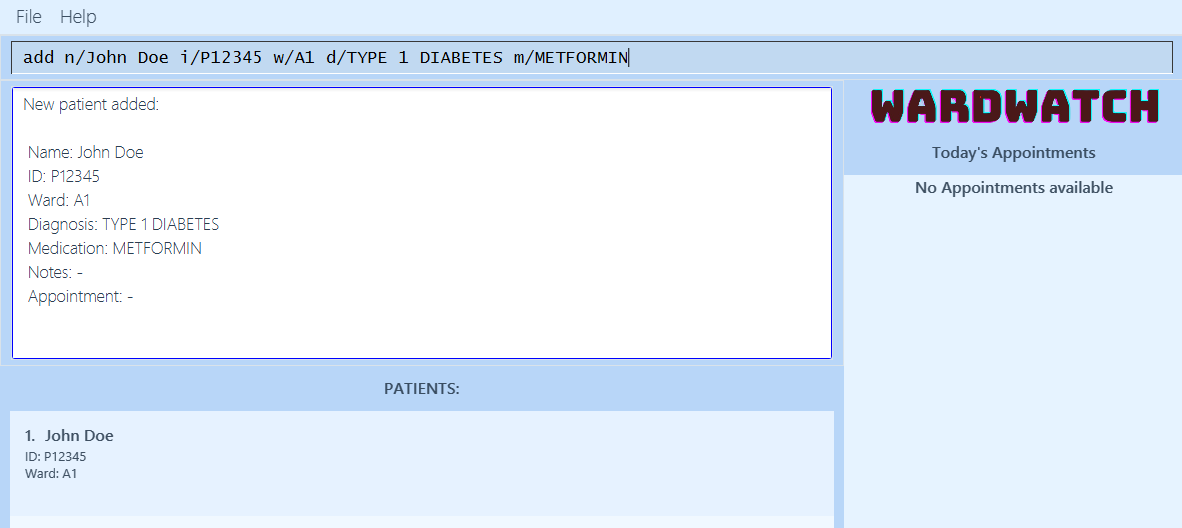
Adds a patient to WardWatch.
Format: add n/NAME i/ID w/WARD [d/DIAGNOSIS] [m/MEDICATION]
DIAGNOSISandMEDICATIONfields are optional. The user can use the Edit Command to add these fields in the future.IDof patients are case sensitive and must be unique.- View parameter constraints here!
Examples:
add n/John Doe i/P12345 w/A1 d/TYPE 1 DIABETES m/METFORMINadd n/Nicky Lam i/P17777 w/A5 d/Gastritis m/Proton pump inhibitors
Editing a patient : edit
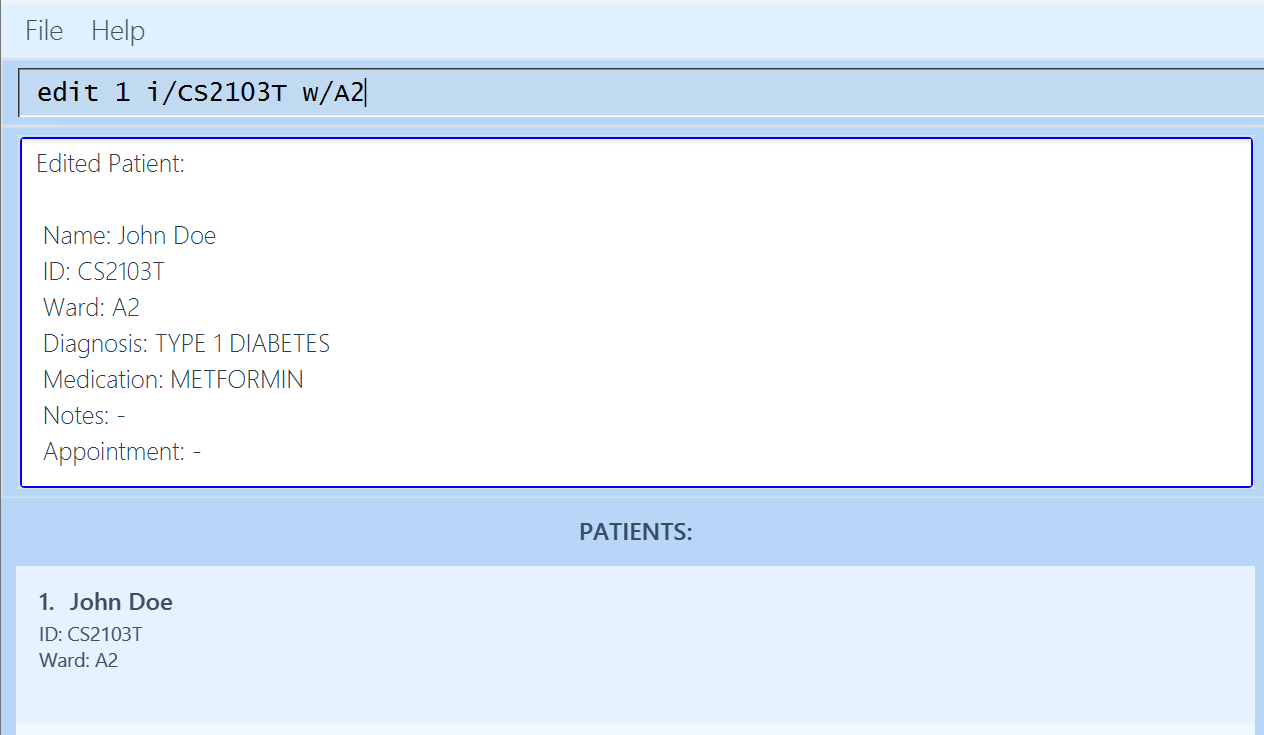
Edits an existing patient in WardWatch.
Format: edit INDEX [n/NAME] [i/ID] [w/WARD] [d/DIAGNOSIS] [m/MEDICATION]
- Edits the patient at the specified
INDEX. - At least one of the optional fields must be provided.
- Existing values will be updated to the input values.
- View parameter constraints here!
Examples:
edit 1 i/P12345 w/A2Edits the patient ID and ward of the 1st patient to beP12345andA2respectively.edit 2 n/Betsy Crower m/ParacetamolEdits the name and medication of the 2nd patient to beBetsy CrowerandParacetamol.
Deleting a patient : delete
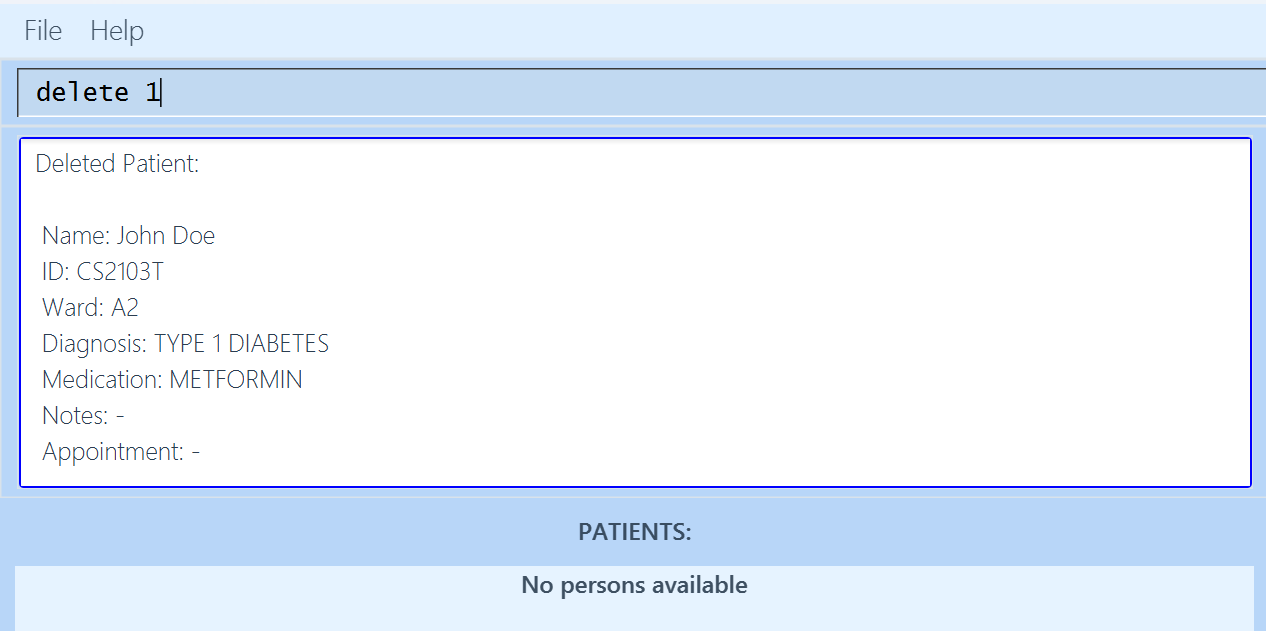
Deletes the specified patient from WardWatch.
Format: delete INDEX
- Deletes the patient at the specified
INDEX.
Examples:
delete 2deletes the 2nd patient of the displayed list.
Listing all patients : list
Shows a list of all patients in WardWatch.
Format: list
Searching patients by field: find
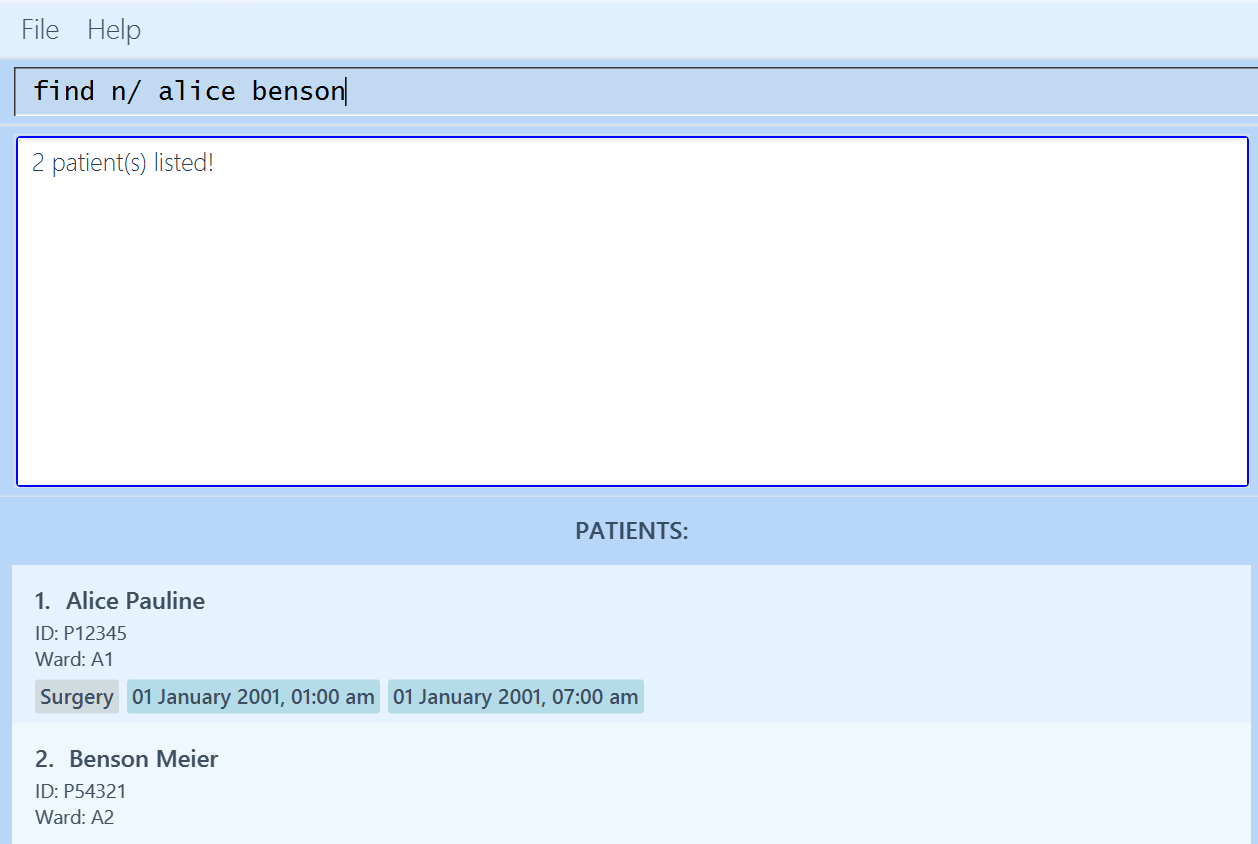
Finds patients whose specified field contain any of the given keywords.
Format: find FIELD/ KEYWORD [MORE_KEYWORDS]…
- The search is case-insensitive.
hanswill matchHans
- The order of the keywords does not matter.
Hans Bowill matchBo Hans
- Able to search any field, but only one field at a time.
- Any valid substring will be matched.
Hawill matchHansandshannon
- Patients matching at least one keyword will be returned.
Hans Bowill returnHans Gruber,Bo Yang
- Patients who currently have the specified field empty will not be returned during the search.
Valid fields for find Command:
- Name: Use
n/to search by patient name. - ID: Use
i/to search by patient ID. - Ward: Use
w/to search by ward. - Diagnosis: Use
d/to search by diagnosis. - Medication: Use
m/to search by medication. - Patient Notes: Use
pn/to search by patient notes. - Appointment description: Use
a/to search by appointment description. - View parameter constraints here!
Examples:
find n/ JohnreturnsjohnandJohn Doe.find w/ B1returns all patients in ward B1.find m/ Davereturns an empty list.find n/ alice bensonreturnsAlice Pauline,Benson Meier.
Viewing a patient's details: view
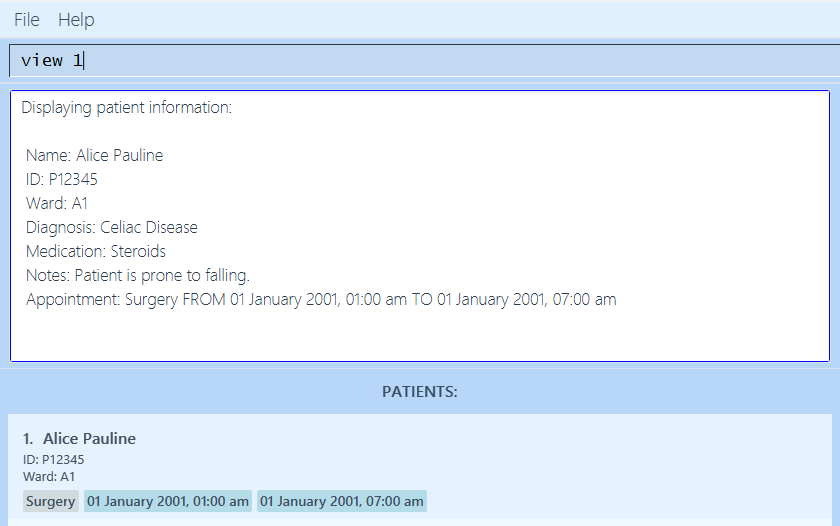
Displays more details about a specific patient listed.
Format: view INDEX
- Shows the patient at the specified
INDEX. - Displays additional information such as a patient's
DIAGNOSIS,MEDICATION,NOTESandAPPOINTMENT.
Examples:
view 1to view the 1st patient of the displayed list.
Adding notes to a patient : addnotes
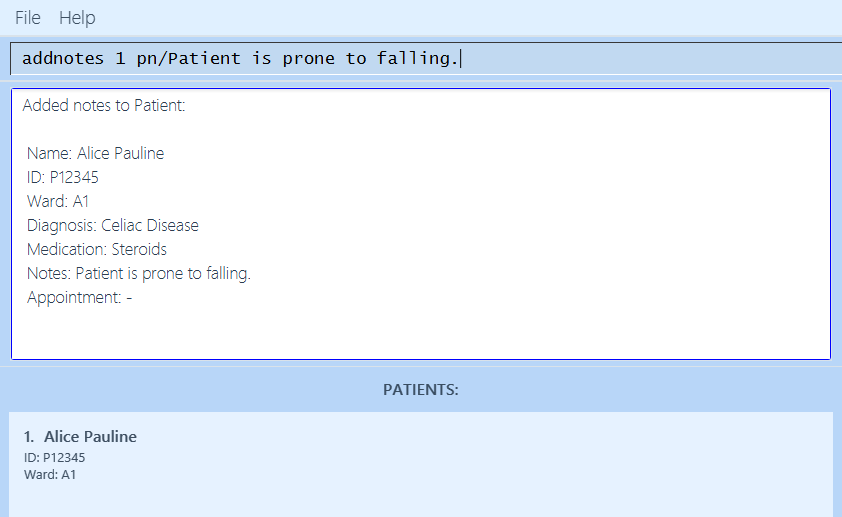
Adds notes to an existing patient in WardWatch.
Format: addnotes INDEX pn/NOTES
- Adds notes to the patient at the specified
INDEX. - To view the added note, run View Command.
- View parameter constraints here!
Caution: Adding a note to a patient who already has an existing note will cause the existing note to be overwritten.
Examples:
addnotes 1 pn/Patient is prone to falling.addnotes 2 pn/Patient requires frequent checkups.
Deleting notes from a patient : delnotes
Deletes notes from an existing patient in WardWatch.
Format: delnotes INDEX
- Deletes notes to the patient at the specified
INDEX. - The patient specified must have existing notes or an error message will be shown.
Examples:
delnotes 1
Adding an Appointment to a patient: makeappt
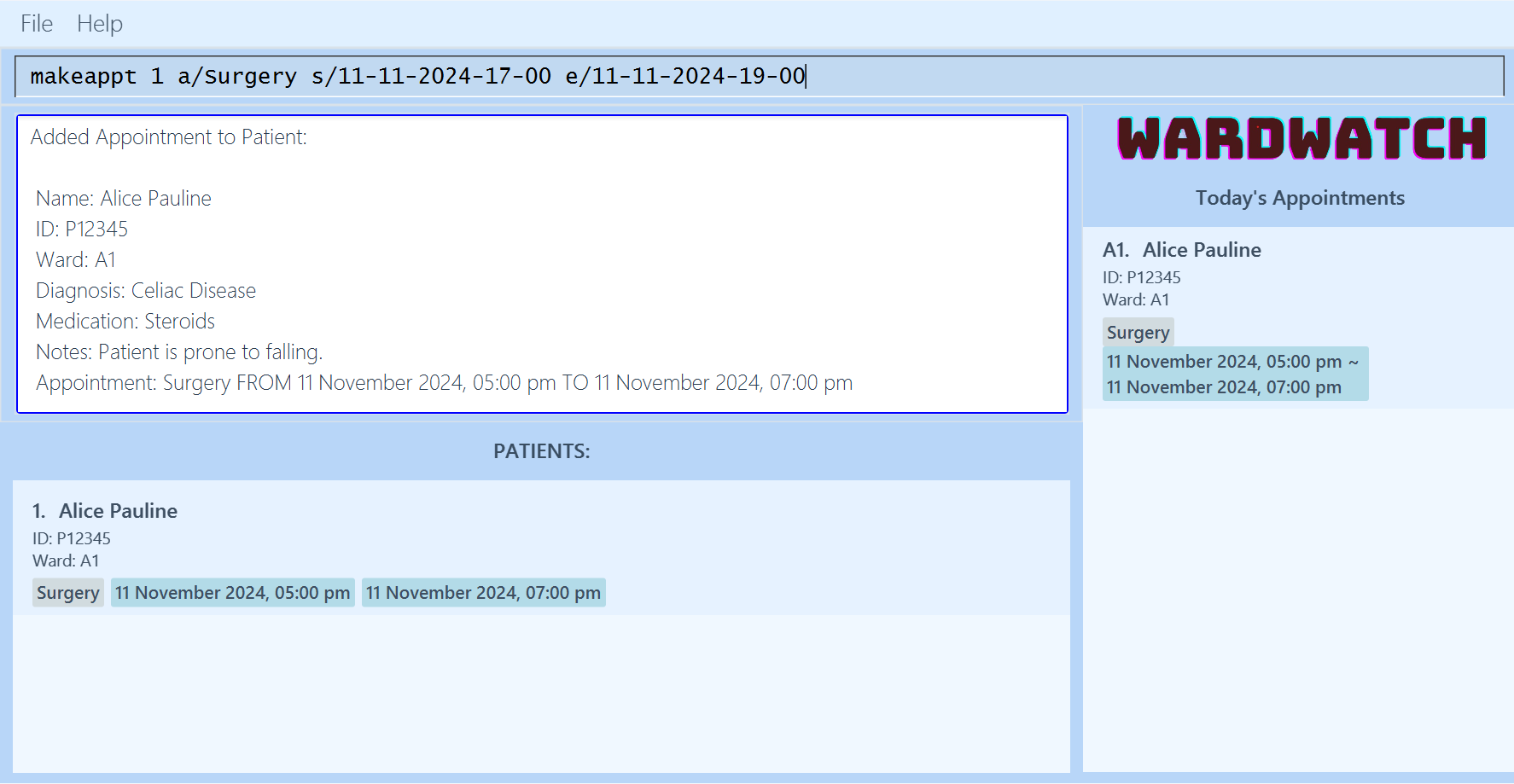
Makes an appointment for a patient.
Format: makeappt INDEX a/DESCRIPTION s/START e/END
- Adds appointment to the patient at the specified
INDEX. - The
DESCRIPTIONrefers to the description of the appointment. STARTandENDrefers to the date and time the appointment starts and ends respectively.- Appointments can be created for date and time in the past to support record-keeping and flexibility.
- Appointments can be created for date and time in the past to support record-keeping and flexibility.
Constraints
- A patient can only hold one appointment at a time.
- The
STARTdate and time must not be after theENDdate and time. - Appointment added must not overlap the duration of existing appointments.
- View parameter constraints here!
Caution:
Adding an appointment to a patient who already has an existing appointment will cause the existing appointment to be overwritten.
- Note that attempting to overwrite an appointment will still require the new appointment to not overlap any existing ones, including the appointment that is about to be overwritten.
Note: To reduce ambiguity, indexes in the appointments list begins with an "A", i.e. A1, to reduce ambiguity from the indexes in the patient list.
Examples:
makeappt 1 a/Surgery s/23-10-2024-12-00 e/23-10-2024-15-00adds a Surgery appointment on the 23rd of October 2024 from 12pm to 3pm to the 1st patient in the displayed list.
Deleting an Appointment from a patient: delappt
Deletes an appointment from a patient.
Format: delappt INDEX
- Deletes the appointment for the patient at the specified
INDEX. - The patient specified must have an appointment or an error message will be shown.
Show appointments on a specific date: scheduledate
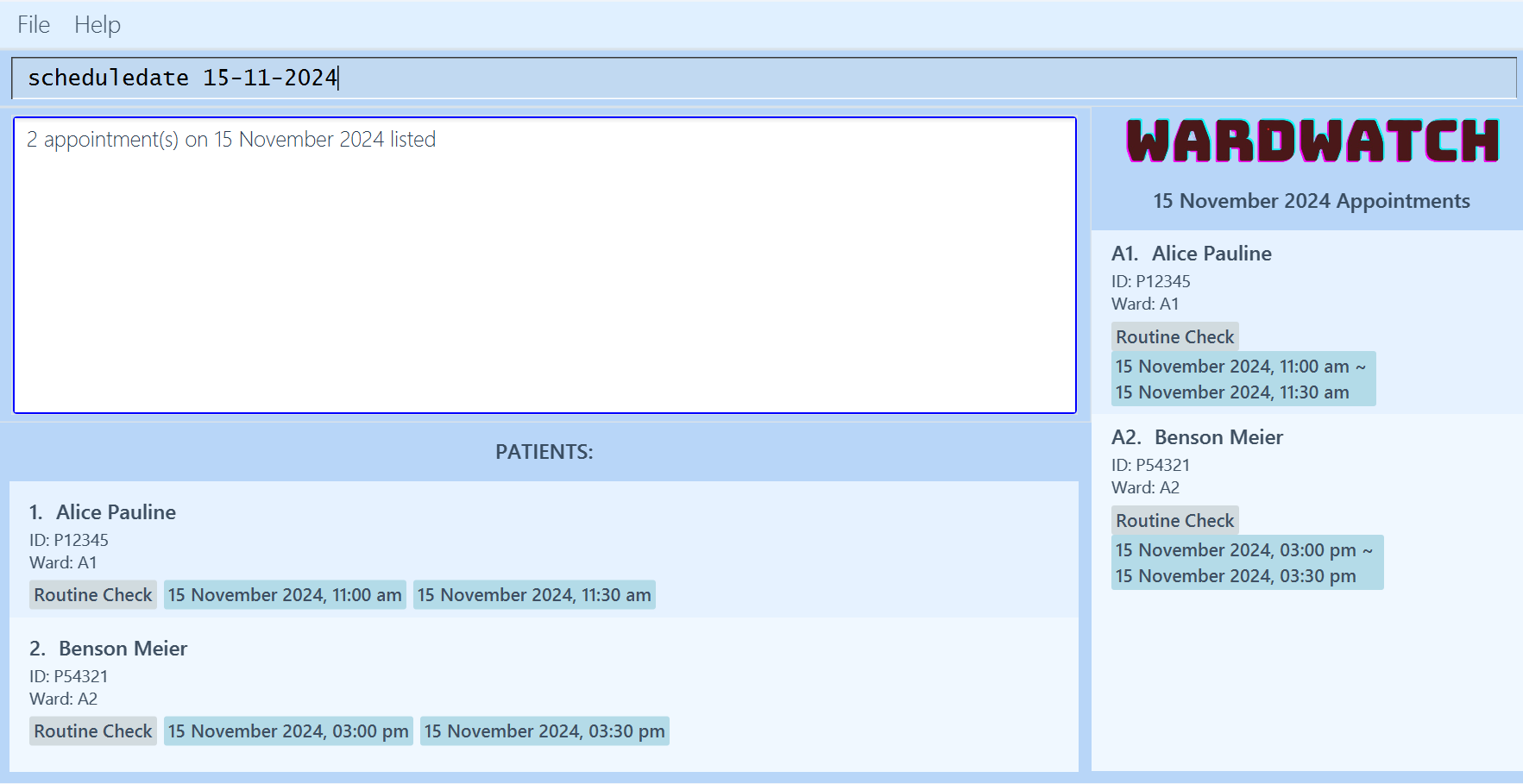
Lists all the appointments on a specific date.
Format: scheduledate DATE
DATEmust be in the form ofdd-MM-yyyy.- Appointments that overlap with the specified date will be displayed on the appointment list.
Examples:
scheduledate 01-01-2020returns all the appointments that takes place on 1st January 2020.
List all patient appointments: scheduleall
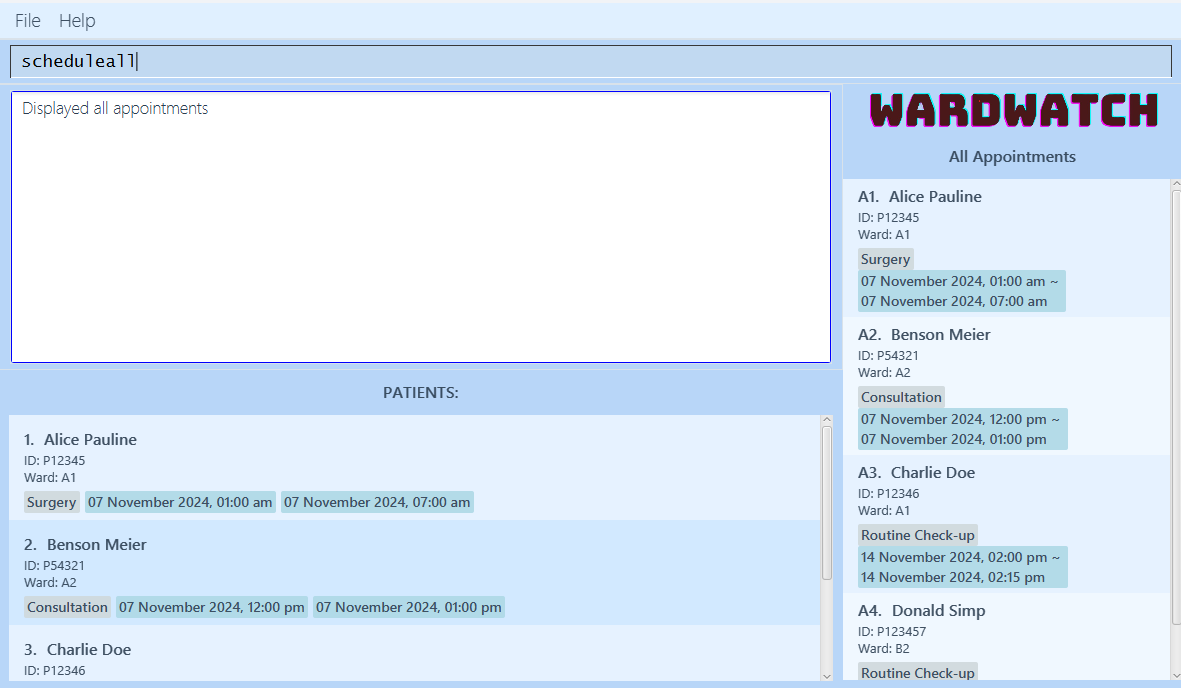
Lists all the appointments assigned to every patient.
Format: scheduleall
FAQ
Q: How do I transfer my data to another Computer?
A: Install WardWatch in the other computer and overwrite its data file with the old data file from your previous WardWatch home folder.
Q: I want to edit an appointment, but there is no command for it. What now?
A: Although you could use the makeappt command to overwrite an existing appointment, we do not recommend this method. Instead, we suggest deleting the existing appointment with delappt command first before using makeappt command to create a new appointment with the edited details.
Q: My patient's details are too long and gets cut off when displayed. How do I see it in full?
A: To see the full details of a patient, please use the view command.
Glossary
- Command Line Interface (CLI): A user interface where users interact with a computer or software by typing text-based commands. Instead of clicking on icons or buttons, users enter specific commands in a terminal or command prompt window to perform tasks.
- Graphical User Interface (GUI): A user interface that allows users to interact with electronic devices through graphical elements such as icons, buttons, and windows, rather than text-based commands. GUIs make it easier for users to navigate and use software applications visually.
- Hard Disk (HDD): A storage device inside a computer that uses spinning magnetic disks to store and retrieve data, commonly used for long-term storage of files, programs, and the operating system.
- Substring: A substring is any consecutive sequence of characters within a sentence. For example, in the sentence "Hello, world!", "ell", "world" and "Hello, world!" are all substrings of the entire sentence.
Known issues
- When using multiple screens, if you move the application to a secondary screen, and later switch to using only the primary screen, the GUI will open off-screen. The remedy is to delete the
preferences.jsonfile created by the application before running the application again. - If you minimize the Help Window and then run the
helpcommand (or use theHelpmenu) again, the original Help Window will remain minimized, and no new Help Window will appear. The remedy is to manually restore the minimized Help Window. - If you run
addnotescommand after you have filtered the patient list withfindcommand, the filter from thefindcommand will be removed and the patient list will show all patients. The remedy is to run thefindcommand again to filter the patient list.
Command summary
| Action | Format, Examples |
|---|---|
| Help | help |
| Clear | clear |
| Exit | exit |
| Add | add n/NAME i/ID w/WARD [d/DIAGNOSIS] [m/MEDICATION]e.g. add i/P23456 n/Donald Duck w/B5 d/Diabetes m/Insulin |
| Edit | edit INDEX [n/NAME] [i/ID] [w/WARD] [d/DIAGNOSIS] [m/MEDICATION]e.g. edit 2 n/Betsy Crower m/Paracetamol |
| Delete | delete INDEXe.g. delete 3 |
| List | list |
| Find | find FIELD/ KEYWORD [MORE_KEYWORDS]…e.g. find n/ James Jake |
| View | view INDEXe.g. view 1 |
| Add Notes | addnotes INDEX pn/NOTESe.g. addnotes 1 pn/Patient is prone to falling |
| Delete Notes | delnotes INDEXe.g. delnotes 1 |
| Add appointment | makeappt INDEX a/DESCRIPTION s/START e/ENDe.g. makeappt 1 a/Surgery s/23-10-2024-12-00 e/23-10-2024-15-00 |
| Delete appointment | delappt INDEXe.g. delappt 1 |
| Schedule appointments by date | scheduledate DATEe.g. scheduledate 01-01-2020 |
| Schedule all appointments | scheduleall |